Study Guide: Protocol, Parameters, Claims, and a Worked Example
Table of Contents
- Introduction
- Core Terminology
- Roles in a SAML Exchange
- How the SAML SSO Flow Works
- Configuring an Enterprise Application for SAML SSO
- The SAML AuthnRequest
- The SAML Response and Assertion
- SAML Signing Certificates
- Claims and Attribute Mapping
- Worked Example - GitHub Enterprise Cloud (Organization)
- Testing and Debugging SAML SSO
- Deployment Best Practices
- Microsoft Learn References
1. Introduction
Security Assertion Markup Language (SAML) 2.0 is a mature, XML-based standard that Microsoft Entra ID uses to provide federation-based single sign-on (SSO) to thousands of enterprise applications — from gallery apps like GitHub and Dropbox to custom line-of-business apps. This guide walks through how the protocol works end to end, what each configuration parameter and claim means, and how it all comes together using GitHub Enterprise Cloud as a worked example.
Microsoft Entra ID acts as the enterprise cloud identity provider (IdP): it authenticates the user, applies Conditional Access and MFA policies, and issues a signed SAML assertion containing claims about the user. The target application — called the service provider (SP) or relying party — trusts that assertion instead of prompting for a separate username and password.
2. Core Terminology
A few terms recur constantly across the Entra admin center and the SAML specification itself:
| Term | Meaning |
|---|---|
| Identity Provider (IdP) | The system that authenticates the user and issues the SAML token. Microsoft Entra ID plays this role. |
| Service Provider (SP) / Relying Party | The application that consumes the SAML token to sign the user in, e.g. GitHub, Dropbox, ServiceNow. |
| Assertion | The XML block inside a SAML Response that carries the authentication statement and the user's claims. |
| Claim | A single piece of information (attribute) that the IdP asserts about the user, e.g. email address or role. |
| NameID | The value in the SAML Subject that uniquely identifies the user to the SP — the "who is this" of the assertion. |
| Entity ID / Identifier | A URI that uniquely identifies the SP (or IdP) taking part in the exchange. |
| ACS URL / Reply URL | The endpoint on the SP where Entra ID posts the SAML Response after authentication. |
| Enterprise Application | The Entra ID object (service principal) that represents an application and holds its SSO, provisioning, and access settings. |
Source: SAML authentication with Microsoft Entra ID — Microsoft Learn
3. Roles in a SAML Exchange
A SAML SSO scenario always involves the same four parties: the user, their browser, the service provider (the app), and Microsoft Entra ID as the identity provider. Entra ID also draws on the directory — users, groups, app roles, and Conditional Access policies — to decide who can sign in and what claims to issue.
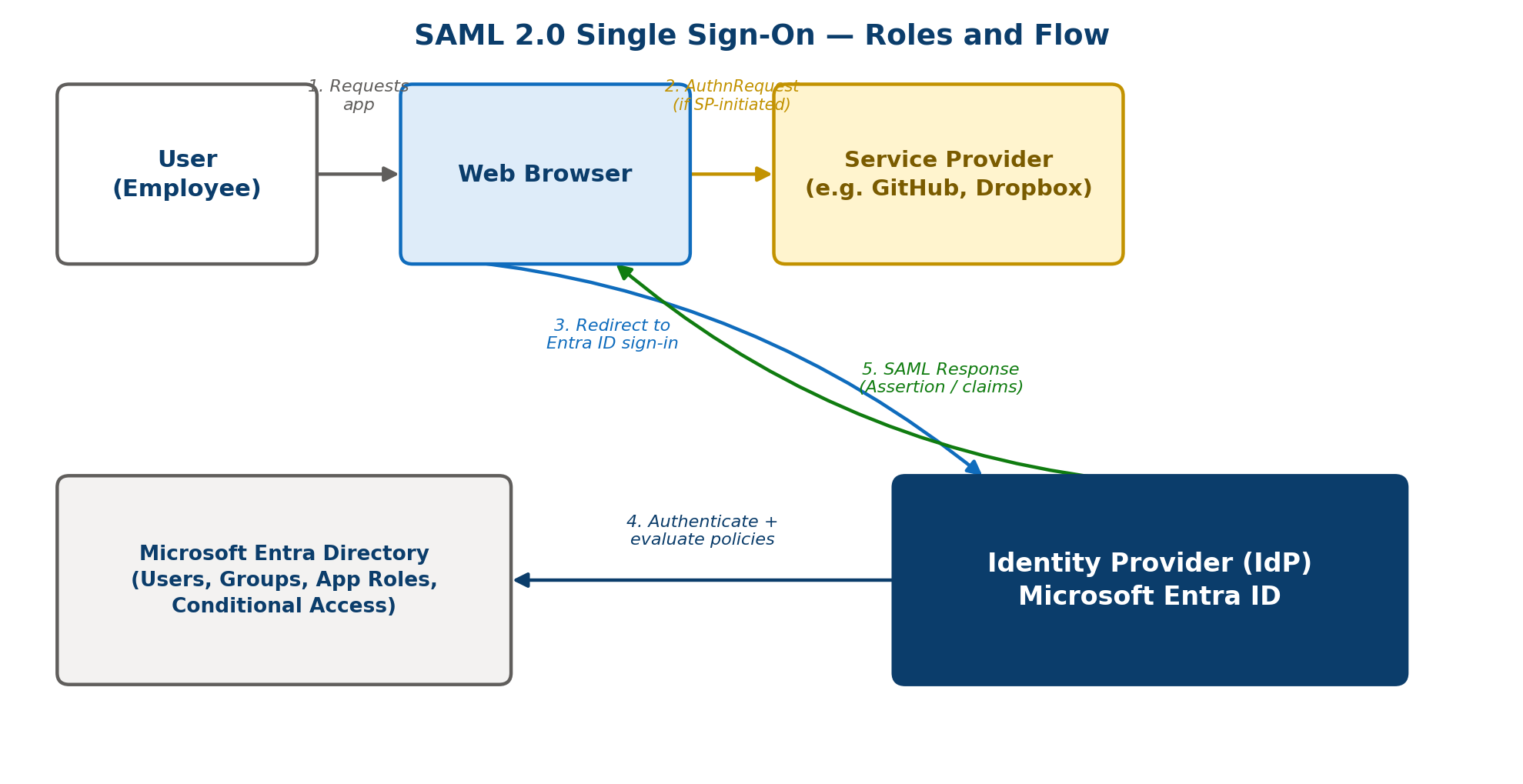
Figure 1 — Roles involved in a Microsoft Entra ID SAML SSO exchange (original diagram).
Source: SAML authentication with Microsoft Entra ID — Microsoft Learn
4. How the SAML SSO Flow Works
Microsoft Entra ID supports two initiation patterns:
- SP-initiated: the user starts at the application's sign-on URL. The app sends a SAML AuthnRequest to Entra ID, which authenticates the user and posts the assertion back.
- IdP-initiated: the user starts at the Microsoft My Apps portal (or another Entra entry point) and Entra ID posts an unsolicited SAML Response straight to the application's ACS URL.
The cloud service (service provider) uses an HTTP Redirect binding to pass an AuthnRequest element to Microsoft Entra ID, and Entra ID then uses an HTTP POST binding to post a Response element back to the cloud service.
4.1 SP-Initiated Flow, Step by Step
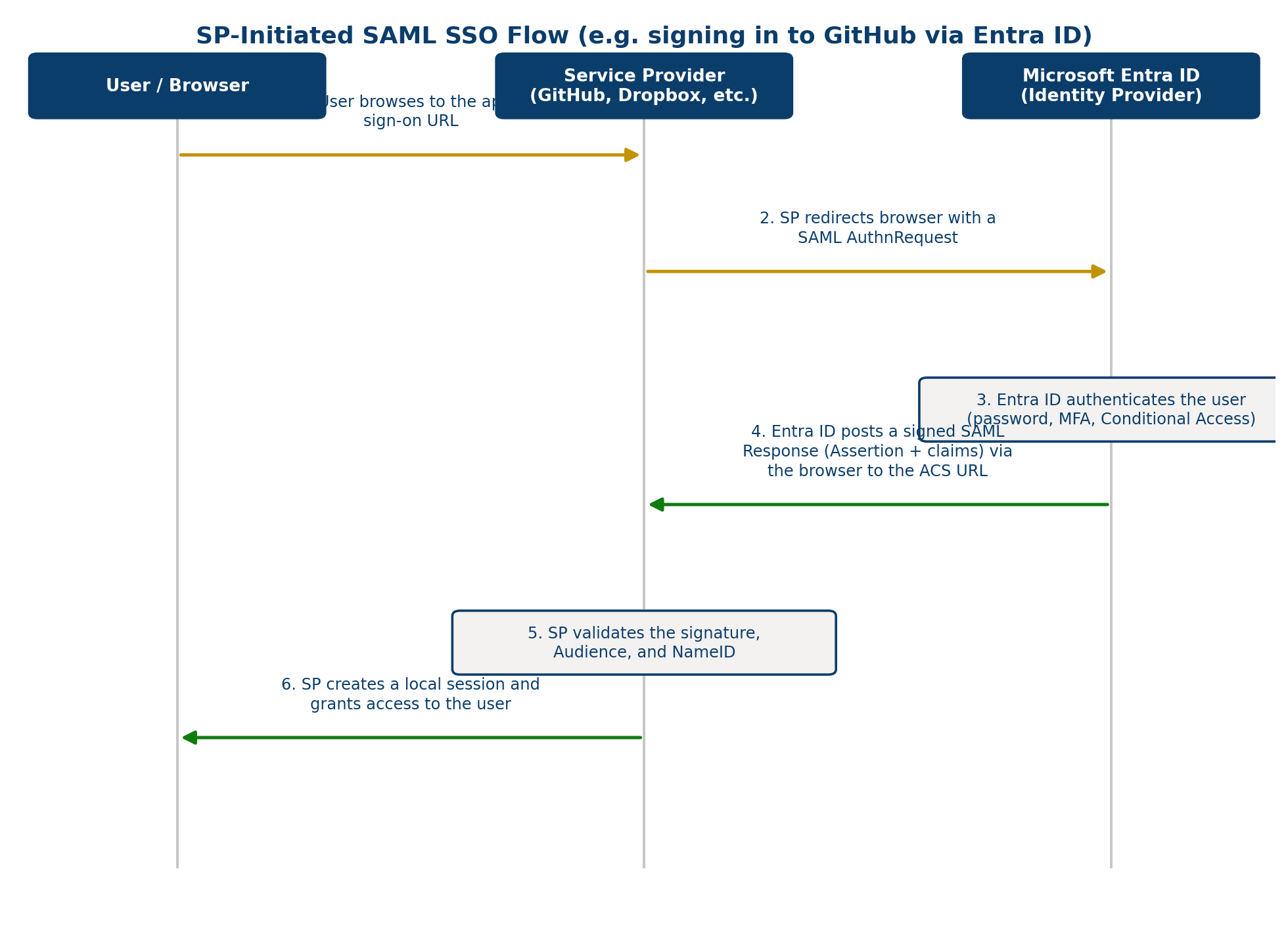
Figure 2 — SP-initiated SAML SSO sequence (original diagram, based on the Microsoft identity platform SAML protocol flow).
- The user navigates to the application's sign-on URL (e.g. github.com/orgs/
/sso). - The SP redirects the browser to Entra ID with a SAML AuthnRequest identifying itself via the Issuer element.
- Entra ID authenticates the user — password, MFA, passkey, or certificate-based authentication — and evaluates any Conditional Access policies scoped to the app.
- Entra ID builds a signed SAML Response containing an Assertion (NameID, Conditions, AttributeStatement, AuthnStatement) and posts it back through the browser to the app's Reply URL / Assertion Consumer Service (ACS) URL.
- The SP validates the signature, checks the Audience restriction, and reads the NameID and claims.
- The SP establishes a local session and grants access — no separate password prompt is needed.
Source: Single sign-on SAML protocol — Microsoft identity platform
5. Configuring an Enterprise Application for SAML SSO
Every SAML-based enterprise application in Entra ID is configured through the same core screen: Enterprise apps > [application] > Single sign-on > SAML. The Basic SAML Configuration section is where you tell Entra ID how to talk to the specific application.
| Parameter | Purpose |
|---|---|
| Identifier (Entity ID) | A URI that uniquely identifies the service provider. Must exactly match the Issuer value the SP sends in its AuthnRequest, and the Audience value Entra ID expects to see honored back. |
| Reply URL (Assertion Consumer Service URL) | Where Entra ID posts the SAML Response after a successful sign-in. Must match the ACS URL configured on the application side. |
| Sign on URL | The URL used to start an SP-initiated sign-in (where the user's browser is sent to trigger the flow). |
| Relay State | An optional deep-link value passed through the flow so the user lands on a specific page inside the app after sign-in. |
| Logout URL | The endpoint Entra ID calls to complete SAML single logout when the user signs out. |
Only single-tenant or gallery applications can be configured for SAML SSO — multi-tenant app registrations show these settings greyed out.
5.1 High-Level Configuration Steps (Gallery Application)
- Sign in to the Microsoft Entra admin center as at least a Cloud Application Administrator.
- Browse to Entra ID > Enterprise apps > New application, search the gallery, and add the app.
- Open the app, select Single sign-on, then choose SAML as the method.
- Edit Basic SAML Configuration: set Identifier, Reply URL, and Sign on URL — for gallery apps, the app-specific tutorial on Microsoft Learn gives the exact values or URL pattern.
- Review and, if required, edit Attributes & Claims (see Section 7).
- Download the SAML signing certificate (see Section 8) and copy the Login URL, Entra Identifier, and Logout URL from the Set up [application] section.
- Paste those values, plus the certificate, into the application's own admin console.
- Assign users/groups to the enterprise application, then test sign-in.
Source: Enable SAML single sign-on for an enterprise application — Microsoft Entra ID
5.2 Administrative Roles Required to Manage SAML SSO
Configuring SAML SSO touches sensitive tenant settings, so Entra ID gates it behind specific admin roles rather than requiring Global Administrator. Following least privilege, most day-to-day SSO configuration should use Application Administrator, Cloud Application Administrator, or application ownership — not a tenant-wide privileged role.
| Role | Scope | Can do |
|---|---|---|
| Global Administrator | Entire tenant | Full administrative access, including everything below. Reserve for emergency/break-glass scenarios rather than routine SSO management. |
| Application Administrator | Directory-wide (all apps) | Create and manage all aspects of enterprise applications, app registrations, and application proxy settings. Can consent to delegated and application permissions (excluding Microsoft Graph tenant-level permissions). A directory-level-only role — can't be scoped to a single app. |
| Cloud Application Administrator | Directory-wide (all apps) | Same as Application Administrator, except it cannot manage Application Proxy. This is the recommended role for teams managing gallery/cloud SAML apps day to day. |
| Application Owner | A single enterprise application | The same permissions as Application Administrator, but scoped only to the application(s) they own — SSO settings, provisioning, certificate management, user/group assignment, and adding or removing other owners. |
| Application Developer | Apps the user registers themselves | Can create app registrations and manage their own apps' credentials, but cannot make the elevated changes to Enterprise Applications that Application Administrator or Cloud Application Administrator can. |
Good to know: When a Cloud Application Administrator assigns a user as owner of a service principal, that user is automatically added as an application owner for single-tenant OIDC and SAML apps. Owners added through Microsoft Graph or PowerShell (rather than the admin center) currently can't manage certain settings, including Attributes & Claims, SAML certificate properties, or token encryption — use the Microsoft Entra admin center for those.
Source: Delegate application management administrator permissions — Microsoft Entra ID
6. The SAML AuthnRequest
To request a user authentication, the service provider sends an AuthnRequest element to Microsoft Entra ID. A minimal example (illustrative, not an application-specific value):
<samlp:AuthnRequest
	xmlns="urn:oasis:names:tc:SAML:2.0:metadata"
	ID="id_9f1c2ab34de5"
	Version="2.0"
	IssueInstant="2026-07-07T01:15:00Z"
	xmlns:samlp="urn:oasis:names:tc:SAML:2.0:protocol">
	<Issuer xmlns="urn:oasis:names:tc:SAML:2.0:assertion">
		https://github.com/orgs/contoso-org
	</Issuer>
</samlp:AuthnRequest>
| Attribute / Element | Required? | Notes |
|---|---|---|
| ID | Required | Populates InResponseTo in the returned response. Must not start with a number. |
| Version | Required | Always "2.0". |
| IssueInstant | Required | UTC round-trip DateTime; Entra ID expects it but doesn't validate its value. |
| AssertionConsumerServiceURL | Optional | If present, must match the app's configured Reply URL — Entra ID honors it when supplied. |
| ForceAuthn | Optional | Boolean; forces re-authentication even with a valid Entra ID session. |
| IsPassive | Optional | Boolean; requests silent authentication using the existing session cookie only. |
| Issuer | Required | Must exactly match one of the Service Principal Names of the app in Entra ID — typically the App ID URI. |
| NameIDPolicy | Optional | Requests a specific NameID Format; unsupported values return an error. |
| RequestedAuthnContext | Optional | Requests specific authentication methods (Password, Kerberos, X509, etc.); Comparison must be "exact" if present. |
| Subject | Not supported | Entra ID rejects a Subject element in the request; use the login_hint query parameter instead. |
Note: Consent, Destination, ProviderName, and the Conditions element in the AuthnRequest are ignored by Entra ID.
Source: Single sign-on SAML protocol — Microsoft identity platform
7. The SAML Response and Assertion
When sign-in succeeds, Entra ID posts a Response back to the application. Structurally (illustrative example):
<samlp:Response
ID="_a1b2c3"
Version="2.0"
IssueInstant="2026-07-07T01:15:03Z"
Destination="https://github.com/orgs/contoso-org/saml/consume"
InResponseTo="id_9f1c2ab34de5">
<Issuer>https://sts.windows.net/<TenantIdGuid>/</Issuer>
<samlp:Status>
<samlp:StatusCode Value="urn:oasis:names:tc:SAML:2.0:status:Success" />
</samlp:Status>
<Assertion>
<Issuer>https://sts.windows.net/<TenantIdGuid>/</Issuer>
<Subject>
<NameID>ekta@contoso.com</NameID>
<SubjectConfirmation Method="urn:oasis:names:tc:SAML:2.0:cm:bearer" />
</Subject>
<Conditions NotBefore="..." NotOnOrAfter="...">
<AudienceRestriction>
<Audience>https://github.com/orgs/contoso-org</Audience>
</AudienceRestriction>
</Conditions>
<AttributeStatement>
<Attribute Name="http://schemas.xmlsoap.org/ws/2005/05/identity/claims/emailaddress">
<AttributeValue>ekta@contoso.com</AttributeValue>
</Attribute>
<!-- ...additional claims... -->
</AttributeStatement>
<AuthnStatement AuthnInstant="...">
<AuthnContext>
<AuthnContextClassRef>urn:oasis:names:tc:SAML:2.0:ac:classes:Password</AuthnContextClassRef>
</AuthnContext>
</AuthnStatement>
</Assertion>
</samlp:Response>
7.1 Key Elements
| Element | What it contains |
|---|---|
| Response.Destination / InResponseTo | Destination is set to the app's Reply URL; InResponseTo echoes the AuthnRequest's ID. |
| Issuer (Response & Assertion) | Always https://sts.windows.net/ |
| Status / StatusCode | urn:oasis:names:tc:SAML:2.0:status:Success on success; a StatusMessage with an AADSTS error code otherwise. |
| Subject / NameID | The persistent, opaque identifier for the user, targeted only at the requesting SP. Confirmation method is always the SAML "bearer" method. |
| Conditions / AudienceRestriction | NotBefore/NotOnOrAfter define a validity window (NotOnOrAfter is 70 minutes after NotBefore). Audience must match the app's Entity ID / Issuer. |
| AttributeStatement | The set of claims — see Section 9 for the default and customizable claims. |
| AuthnStatement / AuthnContextClassRef | Asserts how and when the user authenticated (password, MFA methods, Kerberos, certificate, passkey, etc.). |
Source: Single sign-on SAML protocol — Microsoft identity platform
8. SAML Signing Certificates
Entra ID signs the Assertion (and, in some configurations, the whole Response) using a signing key associated with the enterprise application. This lets the SP cryptographically verify the token really came from your Entra ID tenant and wasn't altered in transit.
- When SAML SSO is enabled for an app, Entra ID automatically creates a signing certificate that is valid for three years by default; the expiration is configurable.
- The certificate can be downloaded in several formats from the SAML Certificates section: Certificate (Base64), Certificate (Raw), Certificate (PEM), and Federation Metadata XML — most SaaS apps ask for Base64 or the metadata file.
- Certificate expiry is one of the most common causes of an SSO outage — organizations should track expiry dates and assign clear ownership (an app owner plus an on-call/escalation contact) for renewal.
Operational tip: Plan a single sign-on deployment recommends documenting who owns certificate renewal and using a monitored distribution list for expiry notifications, since an expired signing certificate breaks sign-in for every user of that app.
Source: Plan a single sign-on deployment — Microsoft Entra ID
9. Claims and Attribute Mapping
By default, Entra ID issues a SAML token containing a claim for the user's username (user principal name) as the unique identifier, plus claims for email address, first name, and last name. Claims live inside the AttributeStatement; the NameID lives in the Subject.
9.1 Default Claims
| Claim (Attribute Name / URI) | Default Source | Description |
|---|---|---|
| http://schemas.xmlsoap.org/ws/2005/05/identity/claims/name | user.userprincipalname | The Name claim — typically the UPN of the signed-in user. |
| ...emailaddress | user.mail | The user's email address. |
| ...givenname | user.givenname | First name. |
| ...surname | user.surname | Last name. |
| http://schemas.microsoft.com/identity/claims/objectidentifier | user.objectid | The immutable, globally unique Entra object ID (GUID) of the user. |
| NameID (Subject) | user.userprincipalname (default) | The unique identifier for the user, customizable per application. |
9.2 NameID Formats
| Format | Behavior |
|---|---|
| Default | Entra ID uses the default source format associated with the selected claim source. |
| Persistent | Entra ID issues NameID as a pairwise (per-app) identifier. |
| Email address | Entra ID issues NameID in email-address format. |
| Unspecified | Entra ID selects the format automatically (issued as a pairwise identifier). |
| Windows domain qualified name | Entra ID uses the WindowsDomainQualifiedName format. |
| Transient | A randomly generated, single-use value; not selectable in the portal UI but supported by the protocol. |
9.3 Editing Claims
Attributes & Claims are edited under Enterprise apps > [application] > Single sign-on > Edit (Attributes & Claims). Typical reasons to change the defaults:
- The application requires the NameID to be something other than the UPN — e.g. an email address, on-premises SAM account name, employee ID, or an extension attribute.
- The application expects different claim URIs or claim values than the Entra defaults.
- Role-based authorization: the application needs an AppRoles-driven "role" claim (configured via app roles on the service principal).
- Group membership needs to be asserted to the app (Add a group claim — capped at 150 groups in a SAML assertion).
Claim source attributes available for NameID
| Attribute | Description |
|---|---|
| The user's email address. | |
| userprincipalName | The user's UPN. |
| onpremisessamaccountname | SAM account name synced from on-premises AD via Entra Connect. |
| objectid | The user's Entra object ID. |
| employeeid | The user's employee ID. |
| Directory extensions / Extension Attributes 1-15 | On-premises schema extensions synced into Entra ID. |
| pairwiseid | A persistent, per-application identifier. |
Common claim transformation functions
| Function | What it does |
|---|---|
| ExtractMailPrefix() | Strips the domain suffix, leaving just the mailbox alias (e.g. joe_smith). |
| ToLowercase() / ToUppercase() | Normalizes case. |
| Join() | Combines two attributes, optionally with a separator. |
| Contains() / StartWith() / EndWith() | Conditionally emits one of two values based on a match. |
| Extract() (before / after / between) | Returns a substring relative to a matching value. |
| RegexReplace() | Regex-based transformation; up to 20 replacements per application, and can be chained (max 2 levels). |
Advanced: Claims can also be scoped by claim conditions — a different source can be emitted depending on whether the signed-in user is a member, an all-guest, a Microsoft Entra guest, or an external guest, and/or their group membership.
Source: Customize SAML token claims — Microsoft identity platform
9.4 Role Claims (App Roles) — Authorization Inside the App
Distinct from the admin roles in Section 5.2 (who can configure Entra ID), app roles are business roles defined on the application itself — e.g. Admin, Reader, Approver — that the SP uses for in-app authorization. When configured, Entra ID emits a role claim inside the SAML AttributeStatement so the application knows which role(s) the signed-in user should get, instead of the app maintaining its own separate role store.
- App roles live on the enterprise application's service principal in the appRoles collection — each role has an id (a GUID), a displayName, a description, allowedMemberTypes (User and/or Application), and the value that's actually sent as the claim.
- Every service principal starts with a default role named msiam_access, which must be kept in the appRoles collection even when you add custom roles — omitting it when updating the collection via Microsoft Graph removes existing role assignments.
- New roles are added by editing the appRoles property of the service principal via Microsoft Graph (Graph Explorer or PowerShell) — the newer App roles UI in the Entra admin center can also be used for many apps.
- Once roles exist, users or groups are assigned to a specific role from Enterprise apps > [application] > Users and groups > Edit assignment, rather than only being granted blanket "Default Access".
- The role's value is what actually appears as the claim value in the SAML response — this is the string the application's authorization logic should check for.
{
	"appRoles": [
		{
			"allowedMemberTypes": ["User"],
			"description": "msiam_access",
			"displayName": "msiam_access",
			"id": "00aa00aa-bb11-cc22-dd33-44ee44ee44ee",
			"isEnabled": true,
			"origin": "Application",
			"value": null
		},
		{
			"allowedMemberTypes": ["User"],
			"description": "Administrators Only",
			"displayName": "Admin",
			"id": "11bb11bb-cc22-dd33-ee44-55ff55ff55ff",
			"isEnabled": true,
			"origin": "ServicePrincipal",
			"value": "Administrator"
		}
	]
}
After the role is added, edit Attributes & Claims to add a claim (for example, named Role or Role Name) sourced from user.assignedroles, so the assigned role value is included in the SAML token issued at sign-in.
Caution: Custom roles you create in the appRoles collection must include the existing msiam_access role block in the PATCH request body alongside any new roles — leaving it out removes it, which silently drops existing user assignments that rely on it.
Source: Configure the role claim — Microsoft identity platform
10. Worked Example — GitHub Enterprise Cloud (Organization)
GitHub Enterprise Cloud is a Microsoft Entra gallery application that supports SP-initiated SAML SSO at the organization level. It's a useful example because, unlike many gallery apps that default cleanly, GitHub requires you to change the default NameID mapping — a good illustration of why Section 9 matters in practice.
10.1 Add GitHub from the Gallery
- Sign in to the Microsoft Entra admin center as at least a Cloud Application Administrator.
- Browse to Entra ID > Enterprise apps > New application.
- Search for "GitHub" and select GitHub Enterprise Cloud – Organization from the results, then add it to the tenant.
10.2 Basic SAML Configuration Values
| Field | Value pattern |
|---|---|
| Identifier (Entity ID) | https://github.com/orgs/ |
| Reply URL (ACS URL) | https://github.com/orgs/ |
| Sign on URL | https://github.com/orgs/ |
Note: These URL patterns aren't literal values —
10.3 Fix the Attribute Mapping (the important step)
By default, Entra ID maps the Unique User Identifier (NameID) to user.userprincipalname. GitHub, however, expects NameID to be the user's email address (user.mail). This is edited from the User Attributes & Claims section: select the pencil/Edit icon, open Unique User Identifier (Name ID), and change the Source attribute from user.userprincipalname to user.mail.
10.4 Download the Certificate
From the SAML Certificates section, download Certificate (Base64) — GitHub's SAML settings page expects the PEM/Base64-formatted public certificate to be pasted directly into its "Public certificate" field.
10.5 Configure SAML on the GitHub Side
- In the GitHub organization, go to Settings > Security and enable "Enable SAML authentication".
- Sign-on URL — paste the Login URL copied from the Entra enterprise application's Set up GitHub section.
- Issuer — paste the Microsoft Entra Identifier value.
- Public Certificate — paste the contents of the downloaded Base64 certificate.
- Change Signature Method and Digest Method from the GitHub defaults (RSA-SHA1 / SHA1) to RSA-SHA256 / SHA256 to match Entra ID's signing algorithm.
- Update the Assertion Consumer Service URL (Reply URL) on the GitHub side so it exactly matches the Reply URL configured in Entra ID.
- Select "Test SAML configuration" inside GitHub to confirm there are no validation errors, then Save.
10.6 Assign Users and Test
- Assign a test user (e.g. a pilot account) to the enterprise application in Entra ID.
- GitHub supports automated user provisioning via organization invitations by default, so a matching GitHub account is created automatically on first sign-in — manual invitation via People > Invite member is only needed if provisioning isn't enabled.
- Test sign-in either via "Test this application" in the Entra admin center, directly at the GitHub sign-on URL, or via the Microsoft My Apps portal.
Good to know: If a user already holds Global Administrator rights in Entra ID, they can sign in through the GitHub organization's SSO endpoint — and even self-join the organization — without being explicitly assigned to the enterprise application first.
Source: Configure a GitHub Enterprise Cloud Organization for Single sign-on with Microsoft Entra ID
11. Testing and Debugging SAML SSO
Entra ID provides a built-in Test single sign-on experience under the app's Single sign-on > SAML page. Microsoft also publishes a browser add-on, the My Apps Secure Sign-in Extension, that captures the SAML request and response automatically — without it, a tool such as Fiddler is needed to inspect the traffic.
- If sign-in succeeds during Test, Entra ID successfully issued a SAML Response token and the app accepted it.
- An error on the Entra sign-in page usually means the AuthnRequest itself is malformed or the app registration doesn't match — download the SAML request for diagnosis.
- An error on the application's own page after redirect usually means the app rejected the Response — download the SAML response and check the certificate, NameID format, and claim values against what the app expects.
- If the gallery app has its own configuration tutorial on Microsoft Learn, re-verify every step was followed before escalating to the vendor.
Source: Debug SAML-based single sign-on to applications — Microsoft Entra ID
12. Deployment Best Practices
- Choose SAML over password-based or linked SSO whenever the app supports a federation protocol — reserve password-based SSO for apps that only understand username/password replay.
- Use the least-privileged admin role needed: Cloud Application Administrator or Application Administrator to manage SSO, rather than Global Administrator.
- Plan for certificate renewal before deployment — assign an app owner and an on-call contact, and use a monitored notification distribution list.
- Confirm application-side licensing separately from Entra ID licensing — SSO for gallery apps itself is free, but the target application still needs its own valid licenses for assigned users.
- Layer session controls (via Conditional Access / Microsoft Defender for Cloud Apps) on top of SSO for sensitive SaaS apps once basic SAML sign-in is validated.
Source: Plan a single sign-on deployment — Microsoft Entra ID
13. Microsoft Learn References
All content in this guide was sourced from the following Microsoft Learn articles:
- SAML authentication with Microsoft Entra ID — https://learn.microsoft.com/en-us/entra/architecture/auth-saml
- What is single sign-on (SSO) in Microsoft Entra ID? — https://learn.microsoft.com/en-us/entra/identity/enterprise-apps/what-is-single-sign-on
- Single sign-on SAML protocol — https://learn.microsoft.com/en-us/entra/identity-platform/single-sign-on-saml-protocol
- Enable SAML single sign-on for an enterprise application — https://learn.microsoft.com/en-us/entra/identity/enterprise-apps/add-application-portal-setup-sso
- Customize SAML token claims — https://learn.microsoft.com/en-us/entra/identity-platform/saml-claims-customization
- SAML 2.0 token claims reference — https://learn.microsoft.com/en-us/entra/identity-platform/reference-saml-tokens
- Configure optional claims — https://learn.microsoft.com/en-us/entra/identity-platform/optional-claims
- SAML-based single sign-on: Configuration and Limitations — https://learn.microsoft.com/en-us/entra/identity/enterprise-apps/migrate-adfs-saml-based-sso
- Plan a single sign-on deployment — https://learn.microsoft.com/en-us/entra/identity/enterprise-apps/plan-sso-deployment
- Debug SAML-based single sign-on to applications — https://learn.microsoft.com/en-us/entra/identity/enterprise-apps/debug-saml-sso-issues
- Configure a GitHub Enterprise Cloud Organization for SSO — https://learn.microsoft.com/en-us/entra/identity/saas-apps/github-tutorial
- Configure the role claim — https://learn.microsoft.com/en-us/entra/identity-platform/enterprise-app-role-management